How to add a config in Veepen
Veepen works with your own servers too. If you have a config link or a subscription from your provider (or from our @veepen_vpn channel), you can import it in a few seconds. Open the Configs tab and pick one of the three methods below.
1Open the Configs tab
Tap Configs in the bottom bar. If you have no servers yet, you'll see the “No Configurations” screen with the import options.
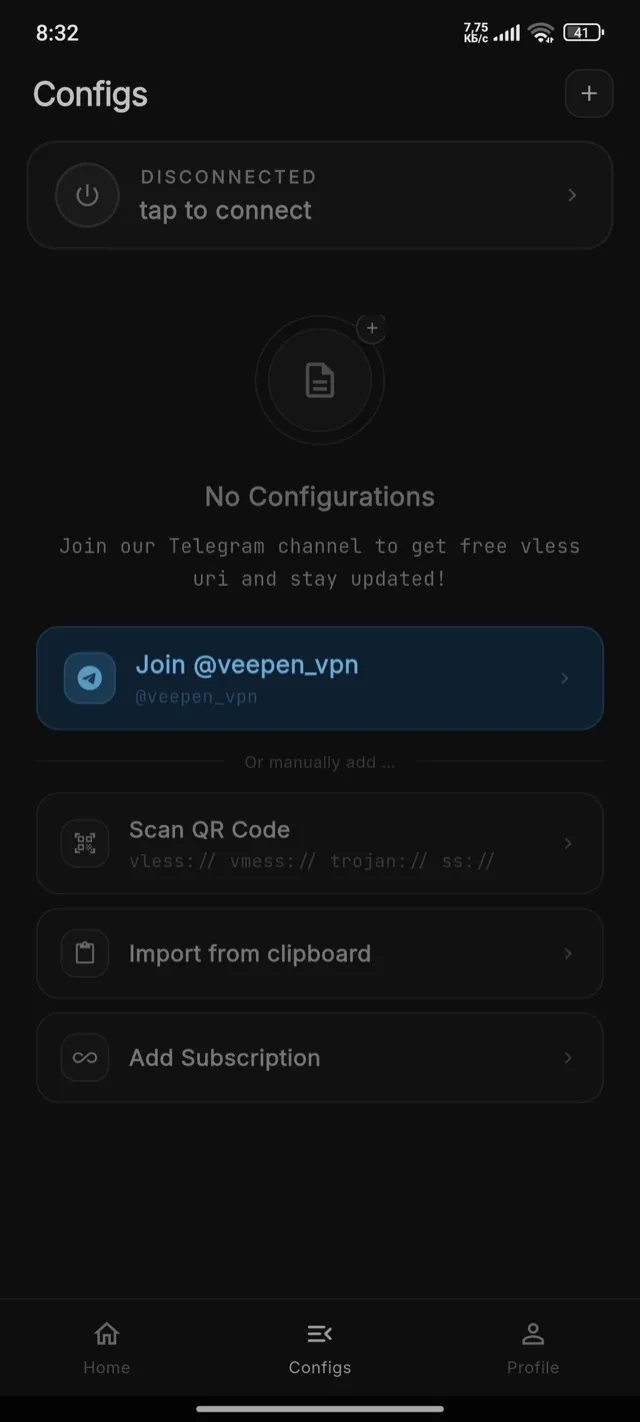
2Open the add menu
Tap the “+” button in the top-right corner. A menu appears: Import from clipboard, Scan QR Code, Add Subscription, Update all subscriptions, Ping all.
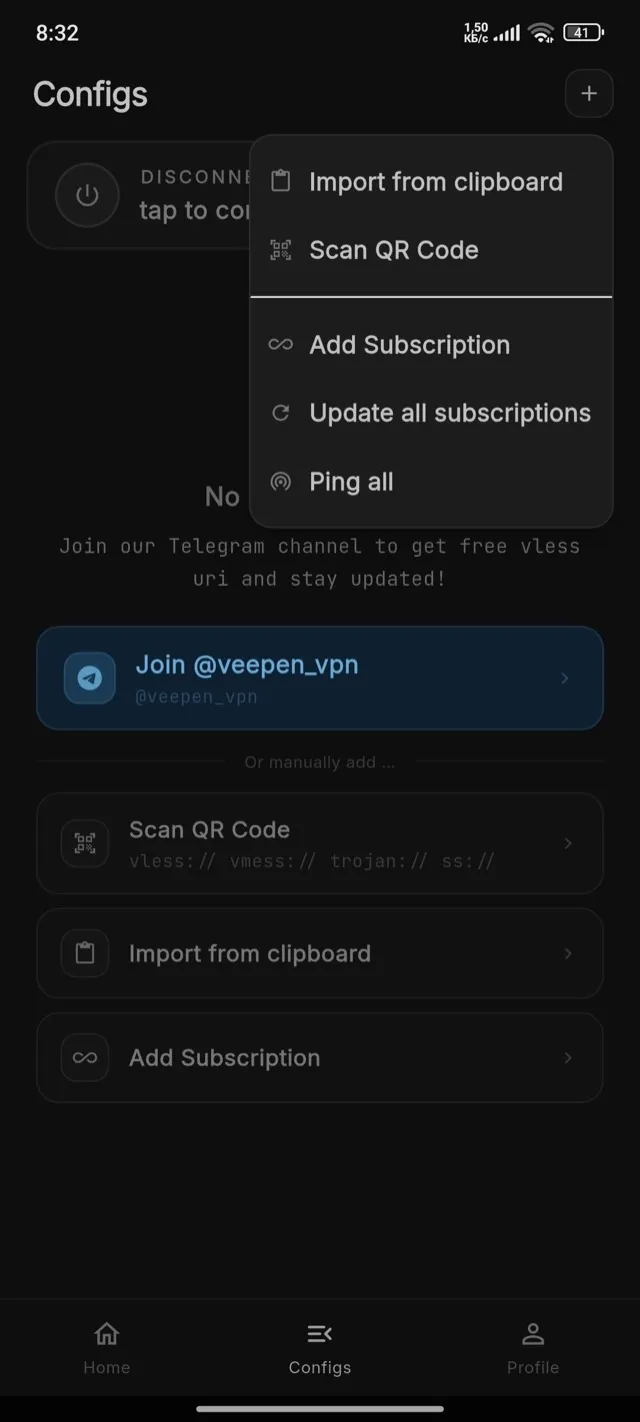
3Import by QR code
Choose Scan QR Code and point the camera at the QR. Veepen reads vless://, vmess://, trojan:// and ss:// links automatically.
4Import from clipboard
Copy a config link (it starts with vless://, vmess://, trojan:// or ss://), then choose Import from clipboard. Veepen adds every link it finds.
5Add a subscription
Choose Add Subscription and paste the subscription URL. Veepen loads all servers from it and keeps them updated — use “Update all subscriptions” to refresh later.
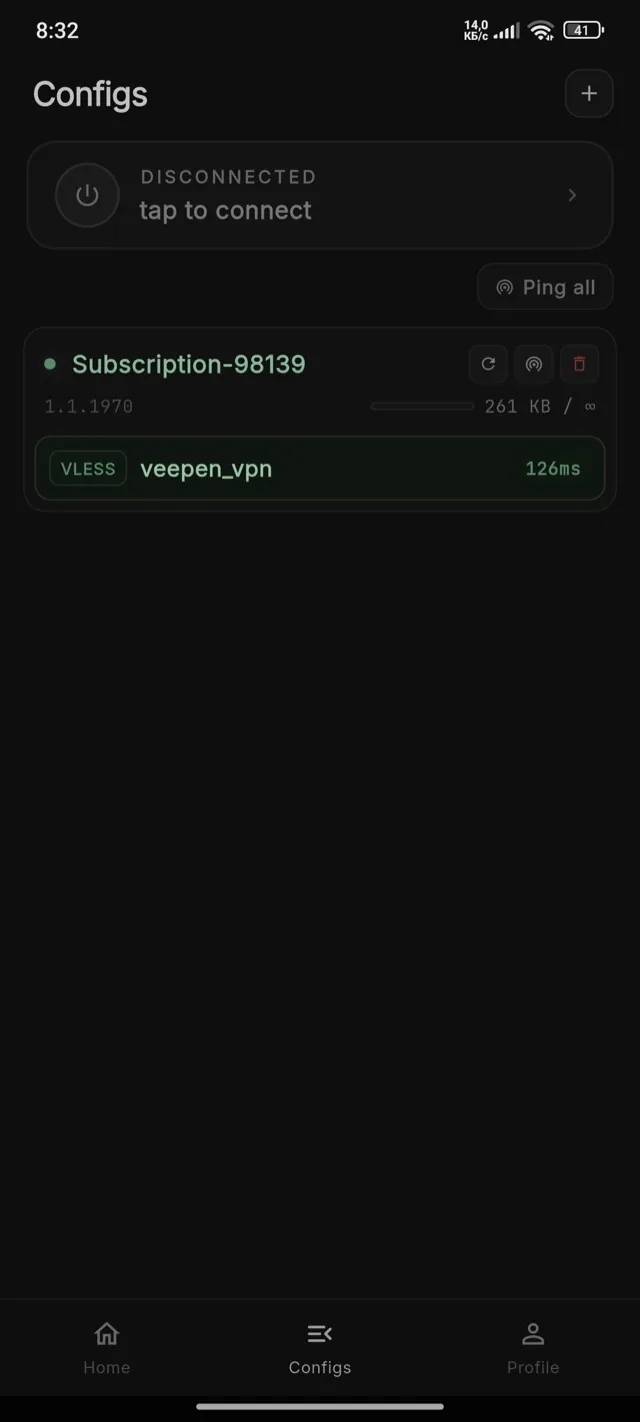
6Connect
You can connect right from the Configs screen — no need to open the Home tab. Tap the connection card at the top (or the power icon). When it shows “Connected” with a running timer, your traffic is encrypted.
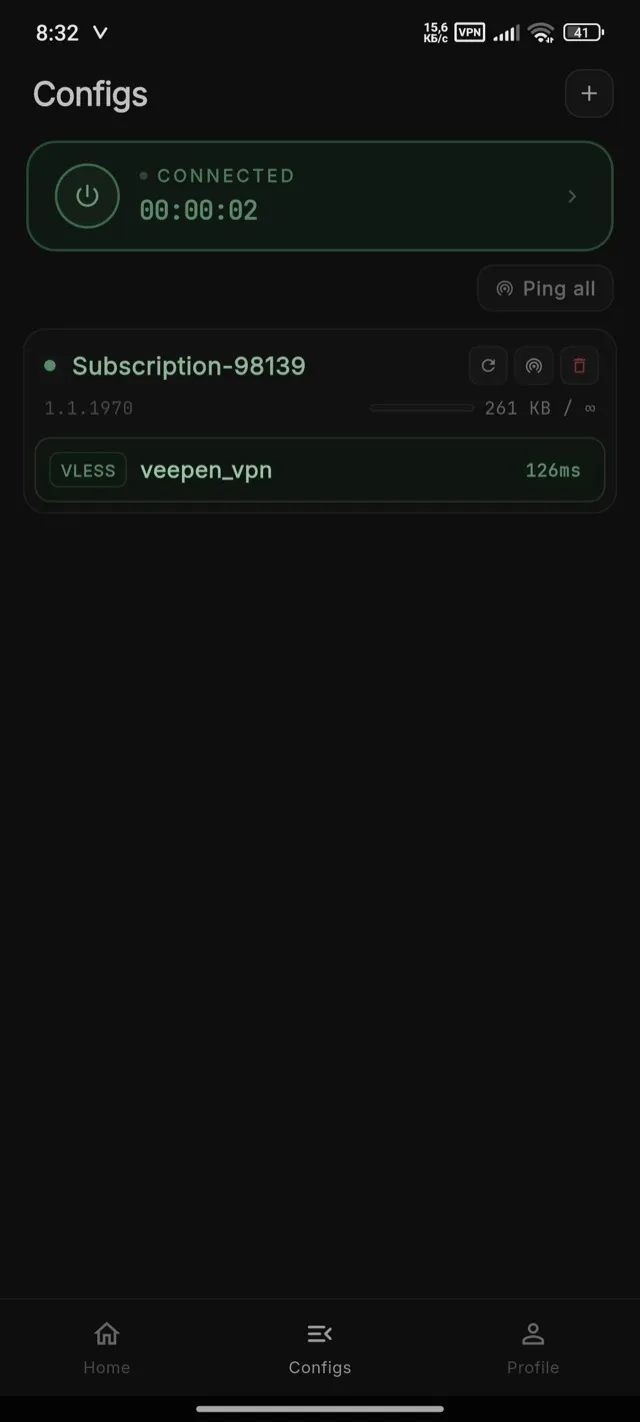
Tip: if a config stops working, refresh the subscription or import a fresh link from @veepen_vpn. To switch locations and find the fastest server, see the guide on connecting and choosing a server.