How to connect and choose a server in Veepen
The Home tab is where you turn the VPN on and pick where to connect. Veepen can connect with a single tap to a recommended server, or you can choose a specific country. Here's everything on the main screen.
1Connect with one tap
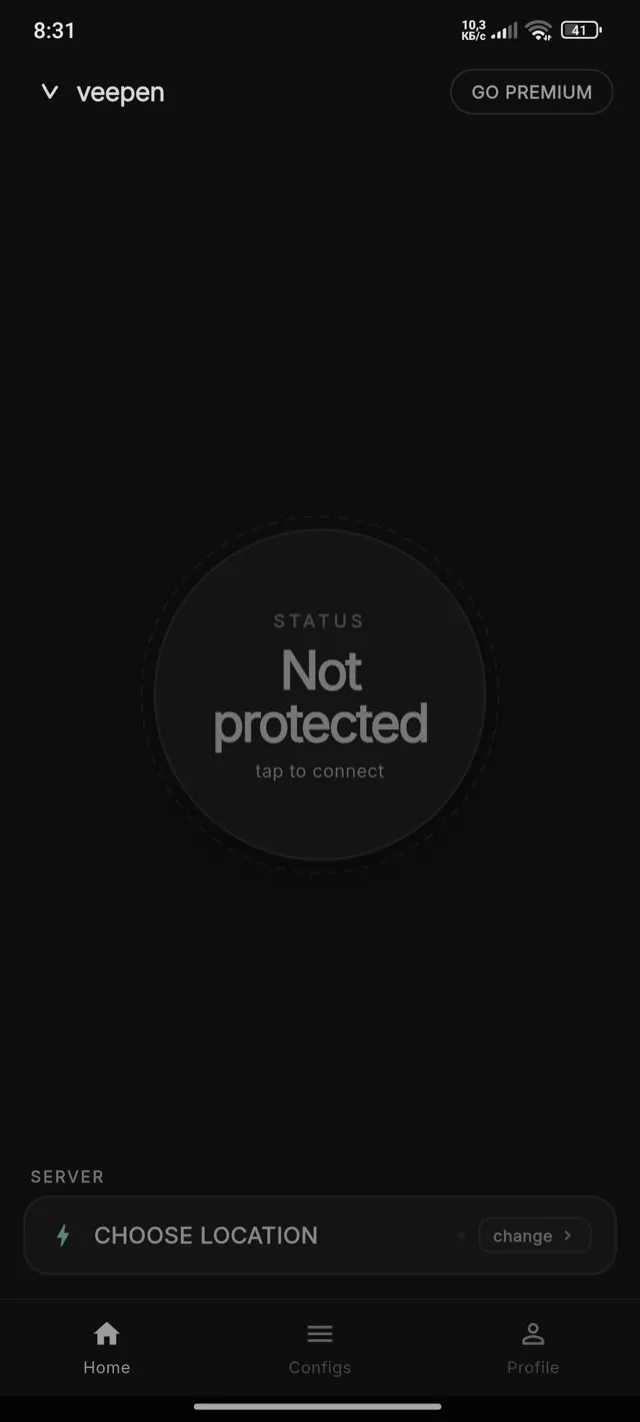
Open the Home tab. The big status circle shows “Not protected”. Tap it — Veepen connects automatically to a recommended (fastest) server. No setup needed.
2You're protected
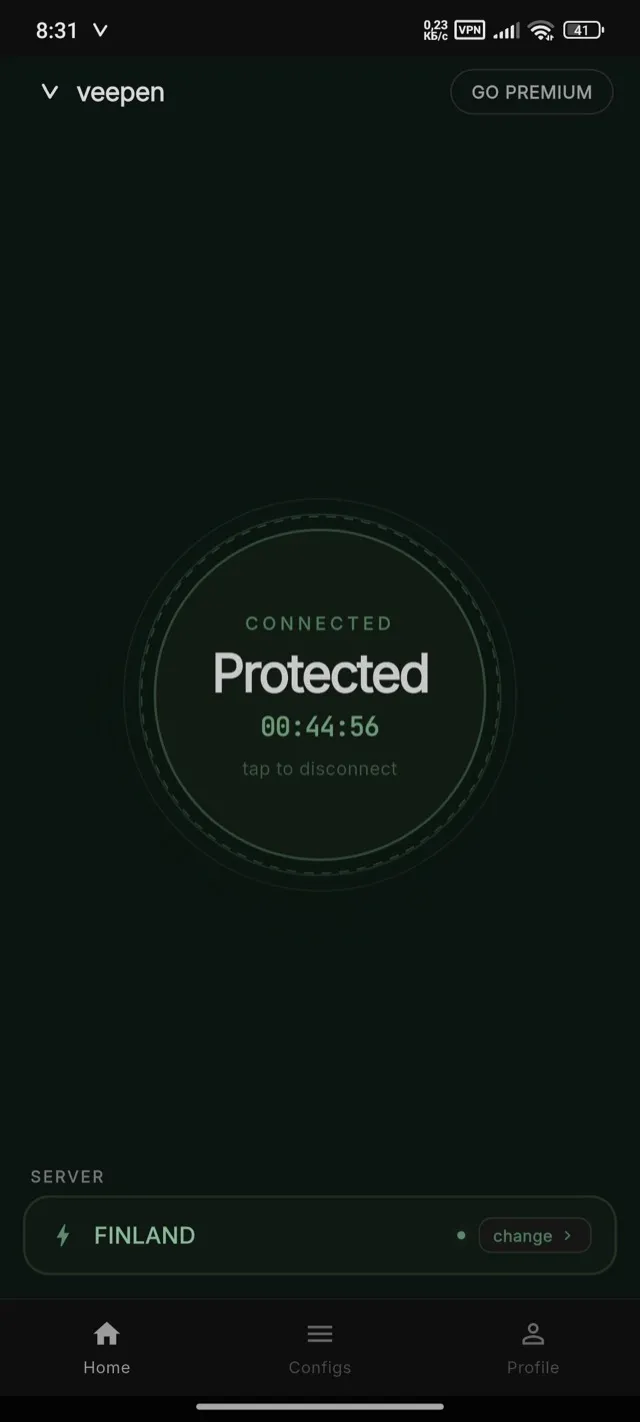
The circle turns green and shows “Protected” with a session timer, and your current server appears at the bottom. Your traffic is now encrypted. Tap the circle again at any time to disconnect.
3Choose your location
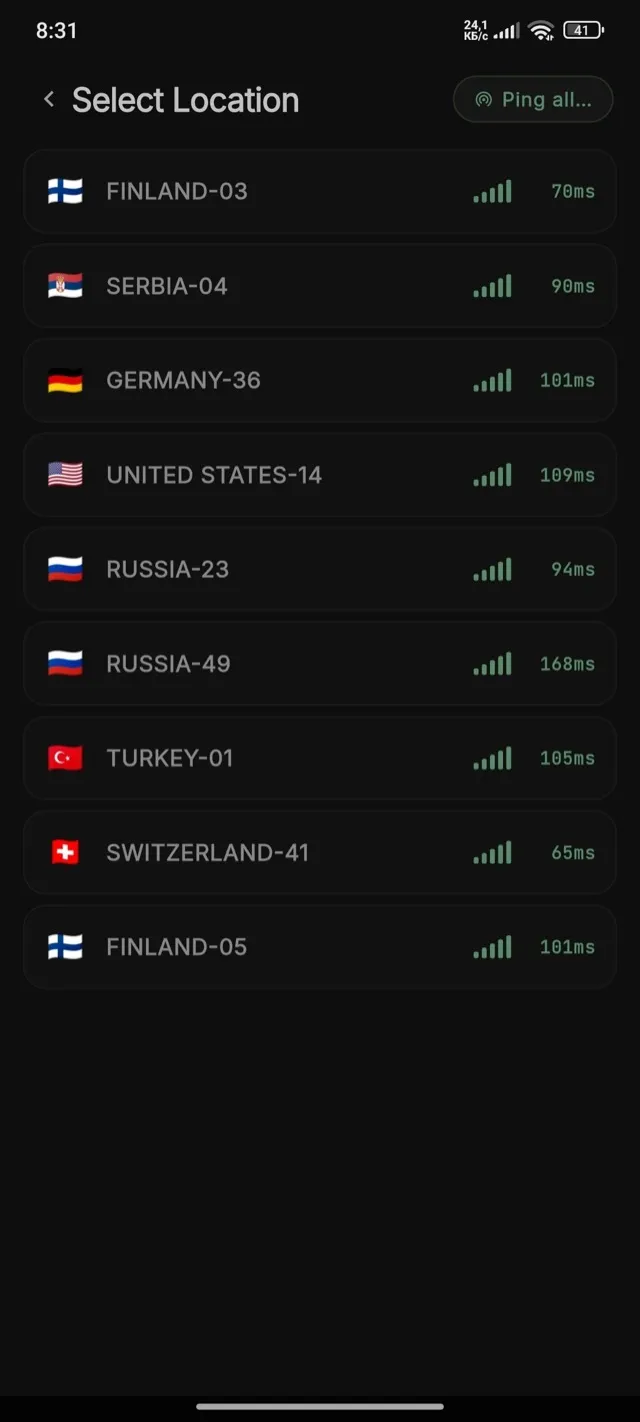
Tap “Change” next to the current server to open the Choose Location screen. Every server shows its country and ping in milliseconds (ms) — the lower the ping, the faster and more responsive the connection.
4Ping servers to find the fastest
Tap “Ping all” at the top to measure every server at once, or tap a single server to ping just that one. Then pick the location with the lowest ping for the best speed.
5Tip: disconnect before pinging
For accurate results, turn the VPN off before you ping. If you ping while connected, the checks travel through the tunnel and the numbers can be misleading. Tap the circle to disconnect, ping, then reconnect to the fastest server.
Don't have a config yet? See the guide on how to add a config (QR code, clipboard, or subscription). Free servers are shared in our @veepen_vpn Telegram channel.